The best screen recording tools in 2026 are Loom for async team messages, Screen Studio for polished product demos, Tella for browser based recording, Descript for editing video by editing text, and OBS Studio when you need long recordings for free.
Screen recorders split into two camps, and picking the wrong camp wastes money. One camp sells speed: hit a shortcut, talk for two minutes, send a link, never open an editor. The other sells polish: automatic zooms that follow the cursor, smooth cursor motion, captions, and an export that looks like a product launch video. Tools in the first camp charge per seat and host your videos. Tools in the second charge for the app and let you keep the file.
The licence model matters as much as the feature list. A $35 one time purchase and a $18 per user per month subscription look similar in month one and nothing alike in year two. That is why two of the eight picks below are one time or lifetime licences, one is free and open source, and the rest are subscriptions that earn their keep in different ways.
Prices were checked on November 19, 2026, on each vendor's own pricing page. Some of these tools price in local currency and some run seasonal discounts, so the figure at your checkout may differ.
Overview of the best screen recording tools
| Tool | Best for | Free plan | Starts at |
|---|---|---|---|
| Loom | Async video messages for teams | Yes, 25 videos, 5 min each | $15 per user per month, billed annually |
| Screen Studio | Polished product demos on a Mac | No | $9 per month, billed yearly |
| Tella | Recording and editing in the browser | No, 7 day trial | $13 per user per month, billed annually |
| Descript | Editing video by editing the transcript | Yes, 60 transcription minutes | $16 per seat per month, billed annually |
| CleanShot X | Quick Mac screenshots and short clips | No | $35 one time |
| OBS Studio | Long recordings and live streams, free | Free and open source | $0 |
| Screen Charm | One Mac app for recording and editing | No, 14 day refund | $89 per year |
| Capture Studio | Windows tutorials with on device AI | No | One time licence |
Licence, platform and the limit that bites
The headline price tells you little here, because these tools are sold three different ways. This is the shape of each deal.
| Tool | Platforms | How it is sold | The limit to check first |
|---|---|---|---|
| Loom | Web, Mac, Windows, iOS, Android | Per user subscription | Free caps every video at 5 minutes |
| Screen Studio | macOS | Subscription, every feature in every plan | Monthly billing is $29, the $9 rate needs a year up front |
| Tella | Browser, with a Mac app | Per user subscription with monthly credits | The watermark stays until the $19 Premium plan |
| Descript | Web, Mac, Windows | Per seat subscription | Free exports are 720p with a watermark |
| CleanShot X | macOS | One time, or a Pro subscription | Basic includes one year of updates, then $19 a year |
| OBS Studio | Windows, macOS, Linux | Free, open source | No editor, no hosting, no captions |
| Screen Charm | macOS 14 and newer | Subscription, three Macs per licence | No trial, only a 14 day refund |
| Capture Studio | Windows 10 and 11 | Lifetime licence with one year of updates | Windows only, and priced in Norwegian kroner |
How we evaluated these screen recorders
Every price, licence term and platform requirement here comes from the vendor's own pricing page, read on November 19, 2026. Where a feature sits behind a higher tier or an add on, we say so, because in this category the upgrade trigger is usually a watermark or a length cap rather than a missing feature.
We judged four things: what the tool does the moment you stop recording, whether you own the file or the vendor hosts it, the real cost over two years rather than month one, and which operating system it actually runs on. That last point sounds trivial until you notice how much of this category is macOS only.
We did not run a controlled quality test of exports across all eight tools. Claims about frame rates, resolutions and AI features are what each vendor publishes, not stopwatch results from us.
What makes Loom the best screen recorder for team messages?
Pros
- The free plan allows 25 videos per person and up to 50 workspace members, which is enough to test it across a whole team
- Transcriptions in 50 or more languages are included even on the free plan
- Viewer insights show who actually watched, which is the reason most teams adopt it
- Business plans add trimming, stitching, custom thumbnails and embed links
- Recording works from the browser, desktop apps and mobile, so nobody is blocked by an install
Cons
- The free plan caps every video at 5 minutes, which rules out demos and walkthroughs
- Business is $18 per user per month, or about $15 billed annually, and it is charged per person
- The AI features (meeting recaps, filler word removal, video to text) need the $24 Business + AI tier
- SSO and SCIM are Enterprise only
- Your videos live on Loom's servers, so leaving means exporting a library
Why we picked Loom
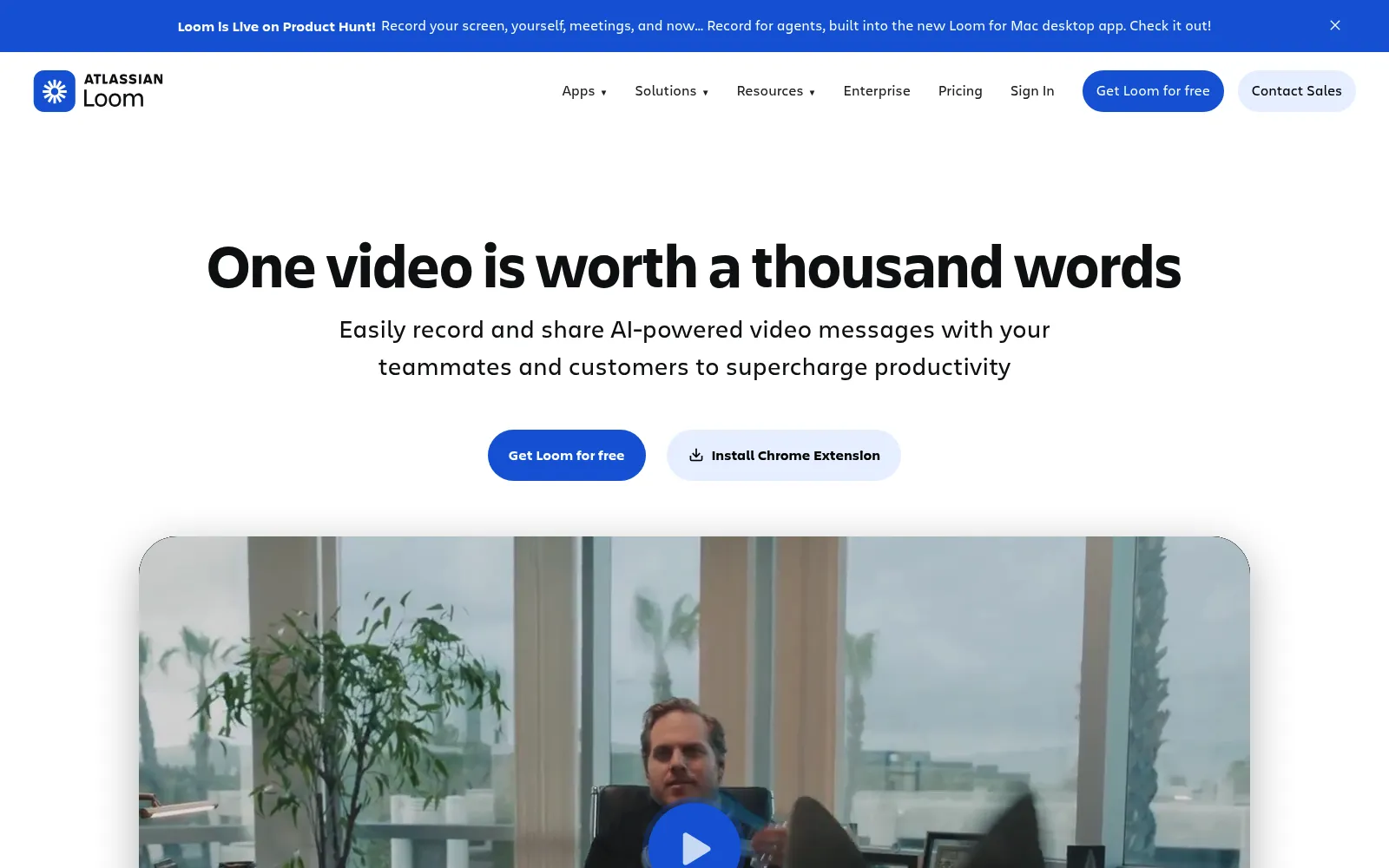
Loom turned the screen recording into a message, and that framing is still what it does best. Record, stop, and the link is already on your clipboard. For a distributed team, replacing a status meeting with four two minute videos is a real weekly saving, and viewer insights settle the question of whether anybody watched.
The free tier is more useful than most in this list because the limit is on video count and length, not on features. Twenty five videos per person across up to fifty people is a genuine pilot. Transcripts come included, which matters for anyone skimming instead of watching.
The five minute cap is the catch, and it is deliberate. Any walkthrough longer than a quick answer pushes you to Business at $18 per user per month, and the per person pricing means a ten person team is $180 a month before anyone has asked for the AI tier. Loom is worth that when video replaces meetings. It is poor value when three people use it occasionally.
Who it is for: distributed teams that send updates, code reviews and bug reports as video instead of scheduling calls. Current tiers are on Loom's pricing page.
What makes Screen Studio the best tool for product demos?
Pros
- Automatic zooms and smoothed cursor motion make an ordinary recording look produced, with no editing skill required
- Every feature is in every plan, including 4K at 60 fps export, shareable links and cloud transcripts
- The yearly rate is $9 per month, which is the cheapest polished demo tool here
- Exports are files you keep, not links on someone else's server
- Students and educators get 40 percent off
Cons
- macOS only, with no Windows or Linux version
- Monthly billing is $29, so the attractive price requires a year up front
- No free plan
- It is built for short, polished clips rather than hour long recordings
- Less suited to async team messaging, where hosting and viewer analytics matter
Why we picked Screen Studio
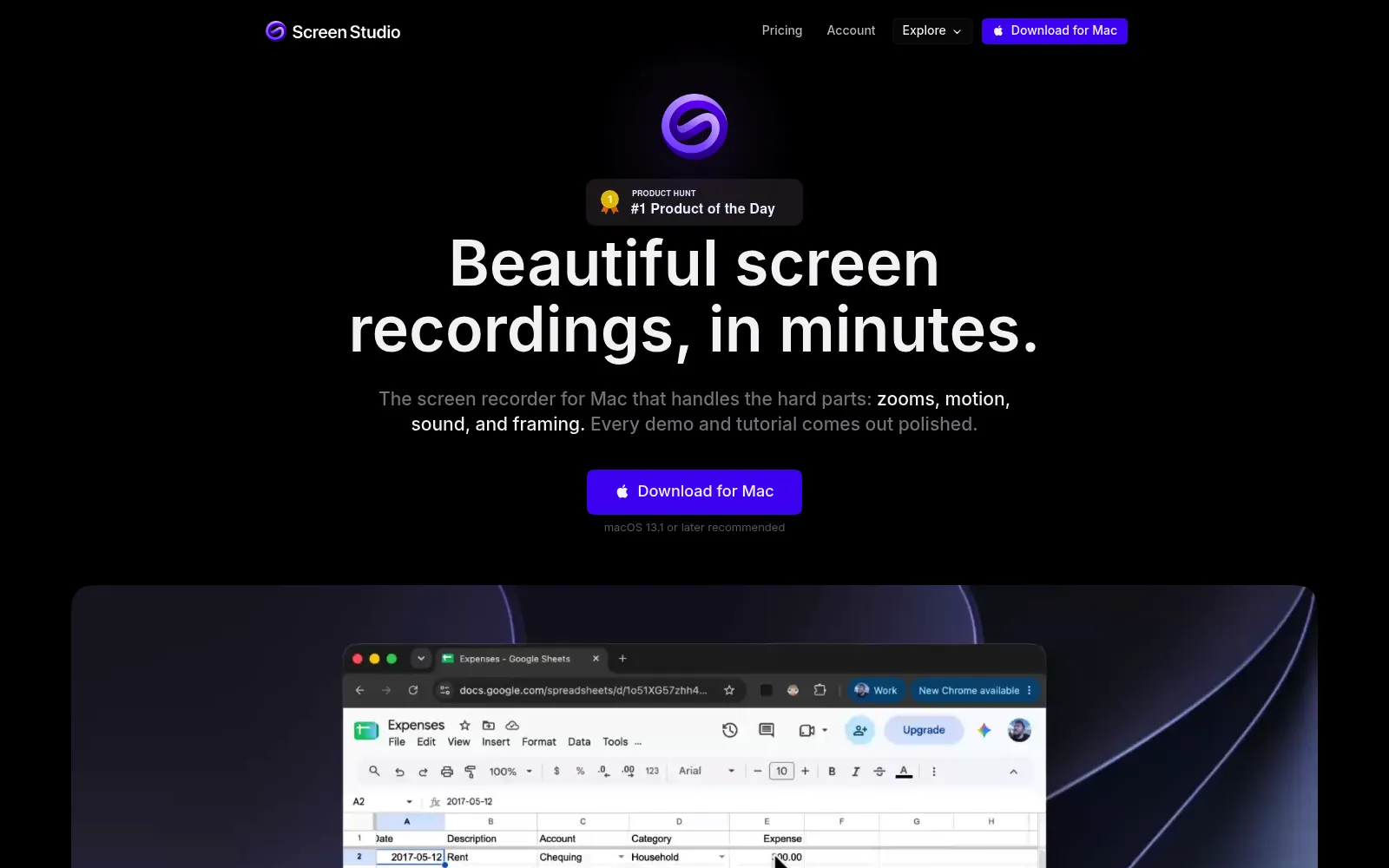
Screen Studio does one trick extremely well: it watches where your cursor goes and builds the zooms, pans and motion for you. The result looks like a video an editor spent an afternoon on, and it takes the length of the recording plus an export.
That is why it has quietly become the default for launch videos, changelog clips and landing page demos among indie founders. If your recording is going on a public page, the polish gap between this and a raw capture is the gap between amateur and professional, and no amount of fiddling in a general editor closes it as quickly.
The pricing is honest in a way that is rare here. There is one plan, everything is in it, and the only decision is monthly or yearly. The jump from $9 to $29 for monthly billing is steep, so treat this as a yearly purchase or look elsewhere.
Who it is for: founders, designers and product marketers on macOS who publish demo videos and care how they look. Details are on Screen Studio's pricing page.
What makes Tella the best browser based screen recorder?
Pros
- Records in the browser, so there is nothing to install before a first take
- Pro includes 4K export and team collaboration at $16 per user per month, or $13 billed annually
- Credits are generous, with 9,000 per month on Pro and 18,000 on Premium
- Premium adds custom branding, watermark removal and export at 60 fps
- A 7 day trial comes with 9,000 credits, so the trial is a real test rather than a demo
Cons
- No free plan at all
- The watermark stays until Premium at $24 per user per month, or $19 annually
- Credit based limits are harder to reason about than a simple minute cap
- Advanced analytics and SSO sit on Premium and Enterprise
- Browser recording is convenient but less reliable than a native app for long sessions
Why we picked Tella
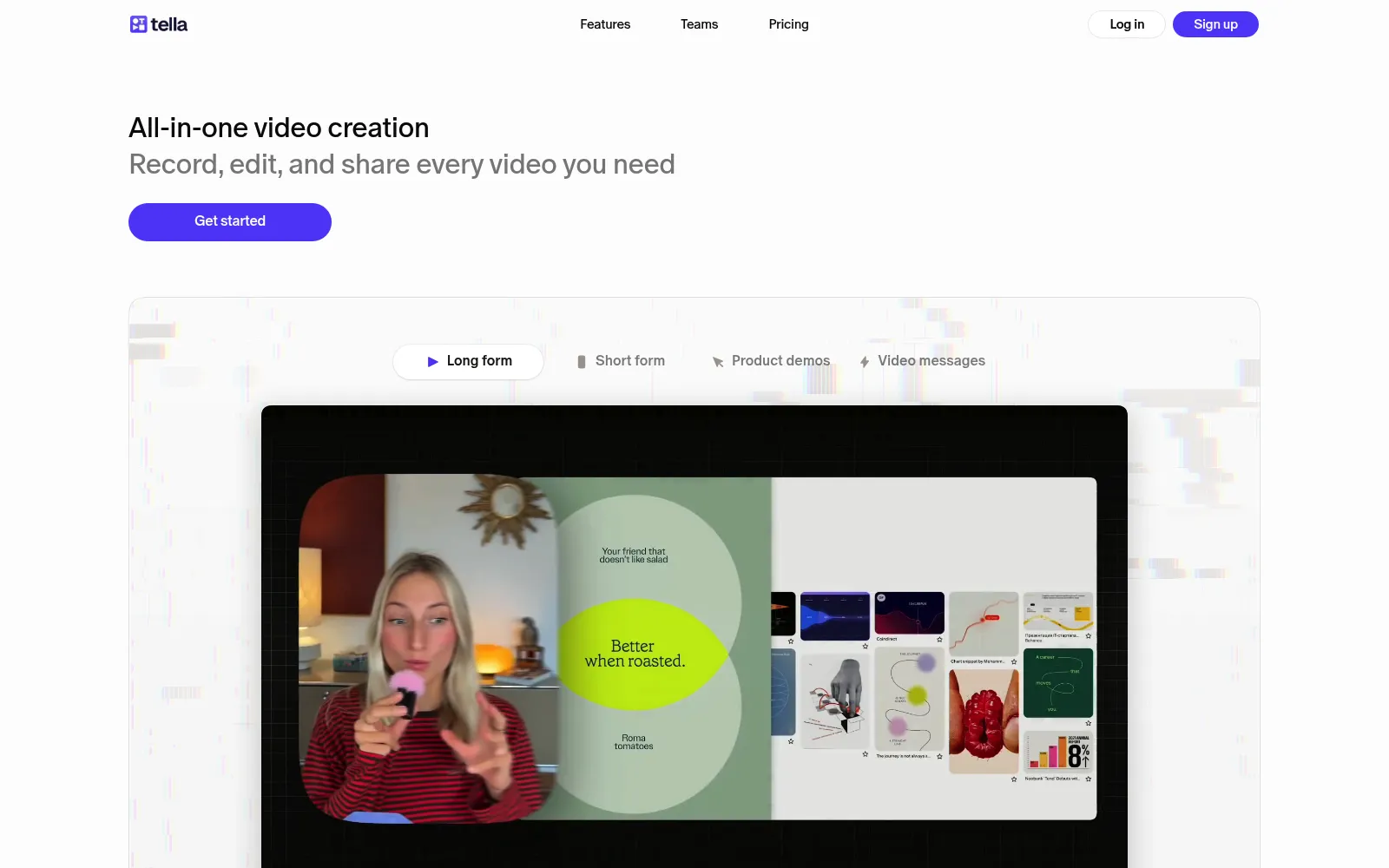
Tella sits between Loom and Screen Studio, and that position is more useful than it sounds. You record in the browser like Loom, then you get an editor with backgrounds, layouts and zooms closer to Screen Studio, and you can publish the result as a hosted link or an exported file.
It is especially good at multi take videos. Record an intro, a demo and an outro as separate clips, rearrange them, and the awkward parts never need a full retake. For course creators and anyone recording the same onboarding video every month, that structure saves more time than any single effect.
Watch the Premium line. Branding and watermark removal, the two things a customer facing video usually needs, both live there at $19 per user per month on annual billing. Price Tella as a Premium tool, not a Pro one, and it compares honestly with the rest of this list.
Who it is for: course creators, customer success teams and solo marketers who want browser convenience and an editor in the same tool. Both tiers are on Tella's pricing page.
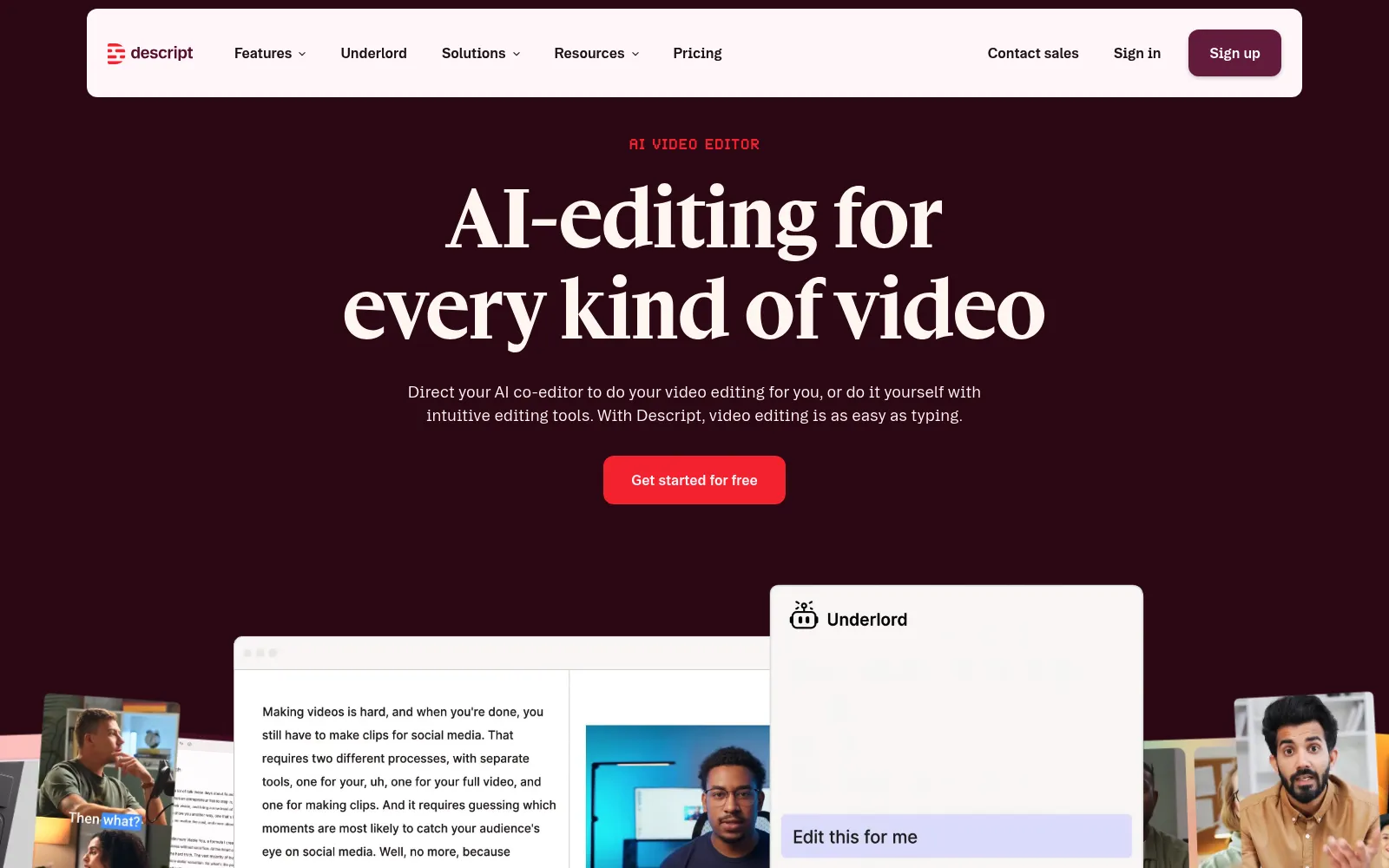
What makes Descript the best tool for editing recordings?
Pros
- Edit the video by editing its transcript, which is the fastest way to cut filler and mistakes
- The free plan includes 60 transcription minutes a month, enough to judge whether the workflow suits you
- Studio Sound cleans up poor microphone audio convincingly
- Filler word removal, eye contact correction and green screen are built in rather than plugins
- Works on web, Mac and Windows, so teams are not split by platform
Cons
- Free exports are 720p with a watermark
- Watermark free and 4K export start at Hobbyist, which is $24 per month, or $16 per seat billed annually
- Creator at $35 monthly ($24 annually) and Business at $65 ($50) escalate quickly for a team
- AI credits are limited on the free plan and metered on paid plans
- It is an editor first, so it is heavier than a tool you open to record a 90 second answer
Why we picked Descript
Descript's premise still feels like a cheat. Your recording becomes a document, you delete a sentence, and the sentence disappears from the video. Anyone who has scrubbed a timeline looking for an "um" understands immediately why people switch.
That makes it the pick when the recording needs real editing rather than a trim. Podcast style walkthroughs, tutorial series and anything with a script benefit most, and Studio Sound rescues audio recorded on a laptop microphone in a room with hard walls.
The cost is weight and price. Descript is a full editor, so it asks more of your machine and your attention than a quick capture tool, and the useful tier starts at $16 per seat per month on annual billing. Pair it with a lightweight recorder rather than using it for every clip.
Who it is for: creators and teams producing edited tutorials, courses and podcasts who want transcript based editing instead of a timeline. Plans are on Descript's pricing page.
What makes CleanShot X the best Mac capture tool?
Pros
- $35 one time for the Basic licence, which is the cheapest serious option here
- Screenshots, scrolling capture, annotation, screen recording and GIF export in one tool
- Includes one year of updates, with an optional $19 per year renewal rather than a forced subscription
- Cloud sharing with one click, with 1 GB of storage on Basic
- Replaces the stock macOS screenshot tool completely, which is where most of the daily value sits
Cons
- macOS 13 or newer only
- Video features are built for short clips, not for edited demos or long tutorials
- No transcript, captions or AI editing of any kind
- Unlimited cloud storage, custom domain, team management and SSO require the Pro subscription at $10 per user per month billed annually
- Updates stop after the first year unless you renew
Why we picked CleanShot X
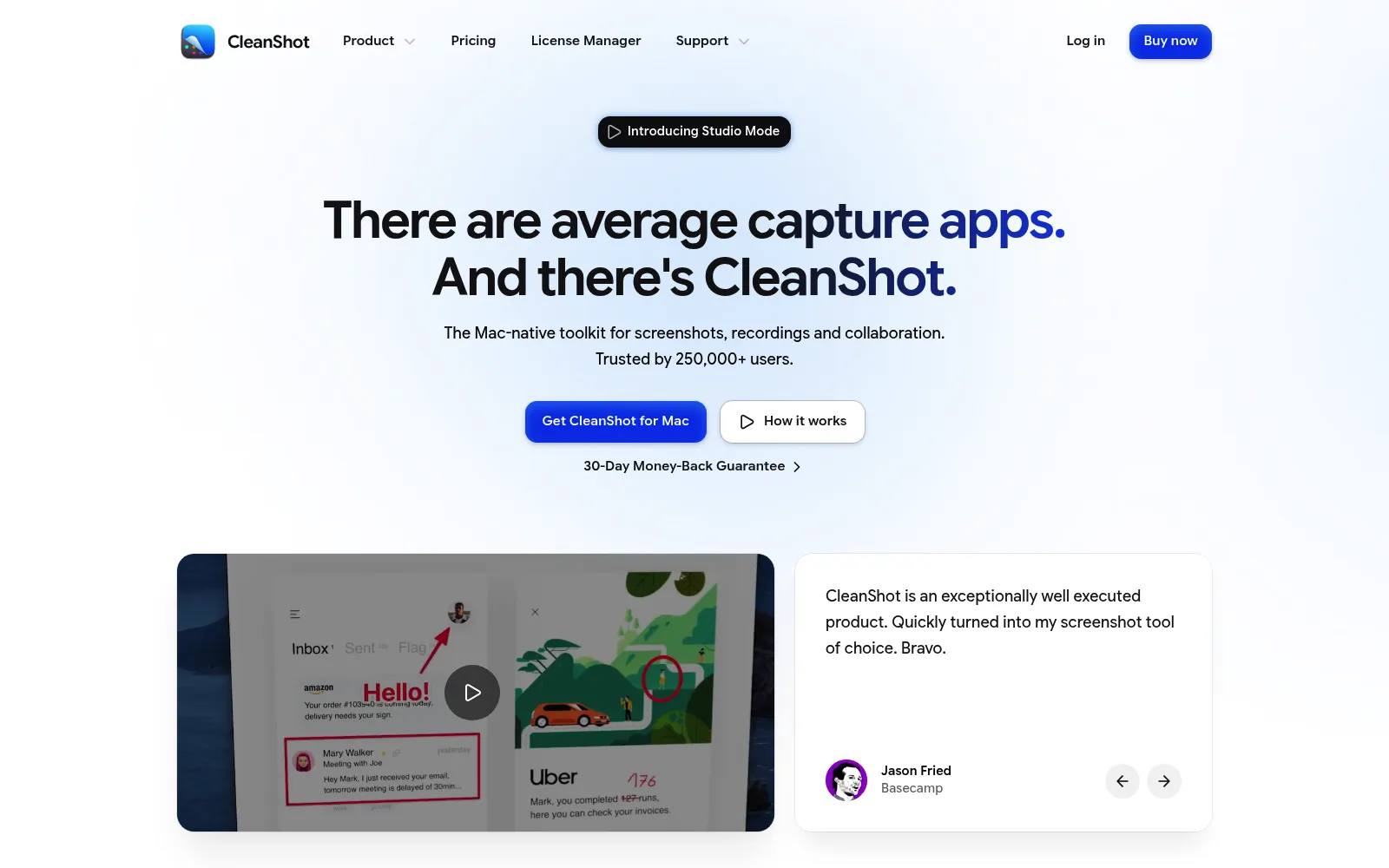
CleanShot X is the tool you use forty times a day without noticing. It takes over the screenshot shortcut, adds scrolling capture and annotation, hides desktop clutter before a shot, and records a quick MP4 or GIF when a still is not enough.
Thirty five dollars, once, for software you will use every working day is the best value in this comparison. The update policy is fair as well. Your version keeps working forever, you get a year of improvements, and renewing is a choice rather than a condition of the app continuing to launch.
Do not mistake it for a video tool. There is no editor worth the name, no captions and no AI cleanup. Pair it with Screen Studio or Descript when the recording is going somewhere public.
Who it is for: Mac users who take screenshots constantly and need the occasional short clip, and who prefer owning software to renting it. Licence options are on CleanShot's pricing page.
What makes OBS Studio the best free screen recorder?
Pros
- Free and open source, with no account, no watermark, no time limit and no upsell
- Runs on Windows, macOS and Linux, so it is the only cross platform pick here with no licence to manage
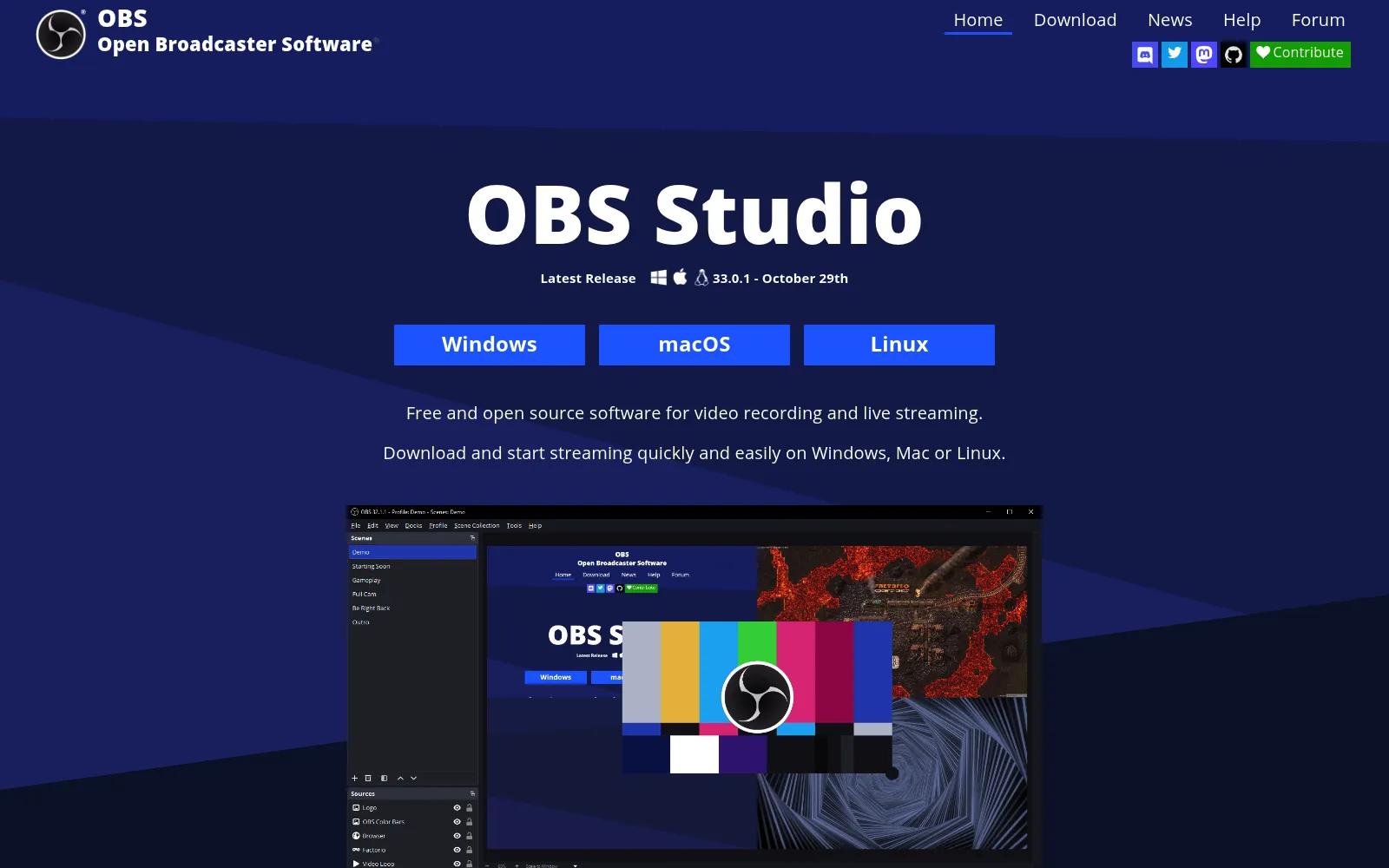
- Scenes, multiple sources and audio mixing give control that no consumer recorder matches
- Records locally at whatever quality your machine can sustain, including long sessions
- Extensible with plugins and Lua or Python scripts, and backed by major sponsors rather than a single vendor
Cons
- Setup is a project, with scenes, sources, encoders and bitrates to configure before the first clean recording
- No editor, so every cut happens in another tool
- No transcripts, captions or automatic zooms
- No hosting or sharing links, you are moving files yourself
- Easy to misconfigure into dropped frames or oversized files
Why we picked OBS Studio
OBS is the answer to a question the paid tools dodge: what if the recording is three hours long, needs several camera and audio sources, and cannot be trimmed by a credit allowance? Streamers settled this years ago, and the same strengths apply to webinars, workshops and conference talks.
It is also the only option here with no ongoing relationship. There is no seat count, no cloud library to migrate, and no plan change that suddenly puts your export behind a paywall. For anyone recording sensitive material, local only capture is a feature rather than a limitation.
The cost is your time. Expect an evening of configuration and a few test recordings before the output is reliably clean, and expect to edit elsewhere. If that sounds like work rather than fun, pay for one of the others.
Who it is for: anyone recording long sessions, multi source setups or live streams, and anyone who wants capable software with no subscription at all. It is at obsproject.com.
What makes Screen Charm the best all in one Mac recorder?
Pros
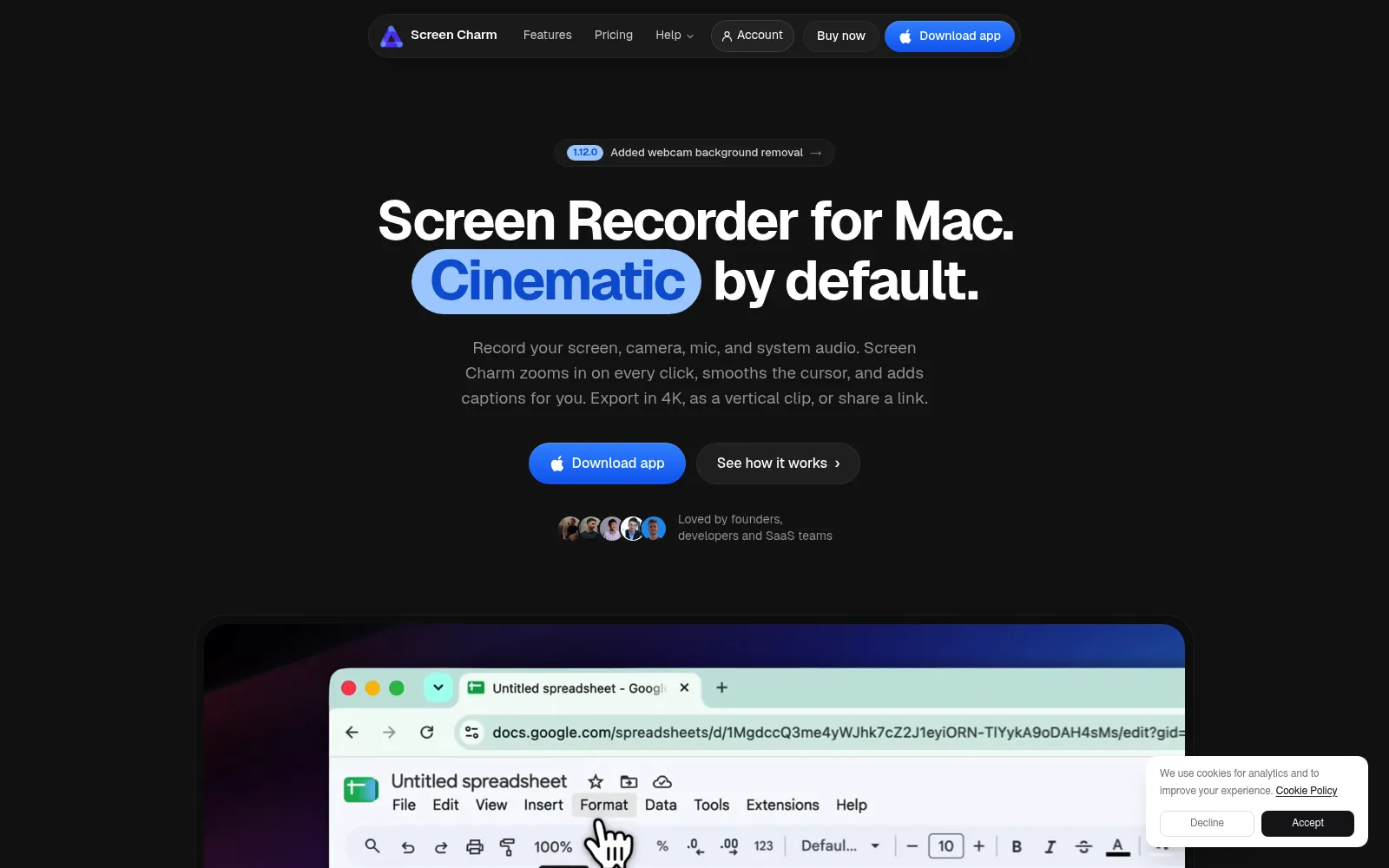
- Recording and editing in one macOS app, with smart auto zoom applied after the take
- One licence covers up to three Macs, which is unusual at this price
- Editor includes trimming, captions, blur for sensitive areas, speed control, motion blur, background music and click highlights
- Exports up to 4K, including a vertical format for short form video
- Shareable links are included alongside file export
Cons
- No free trial or free tier, only a 14 day refund policy
- macOS 14 Sonoma or newer, so older machines are out
- $19 per month is poor value next to $89 per year, which makes this effectively an annual purchase
- A smaller product than Loom or Descript, so the ecosystem and integrations are thinner
- Our own listing still describes it as a one time purchase, while the vendor now sells it as a subscription
Why we picked Screen Charm
Screen Charm is the practical middle of this list. It records like a simple capture tool, then gives you the zoom, caption and blur work that usually sends people to a second application. At $89 per year across three Macs, it undercuts the combination of a recorder plus an editor that most people end up paying for.
The blur tool deserves specific mention. Recording a real dashboard means recording real customer names, and being able to blur a region for the whole clip without exporting to another editor removes the most common reason a useful recording never gets shared.
Expect a smaller product than the category leaders. There is no mobile app, no viewer analytics to speak of and no integration list to scroll. For a solo founder or a small Mac team making tutorials and demos, that is usually fine, and the three Mac licence makes it cheaper per person than it looks. It is listed in our directory at Screen Charm, next to the closest Screen Charm alternatives.
Who it is for: Mac first solo founders and small teams who want recording, zooming, captions and blurring in one app without a second subscription.
What makes Capture Studio the best Windows screen recorder?
Pros
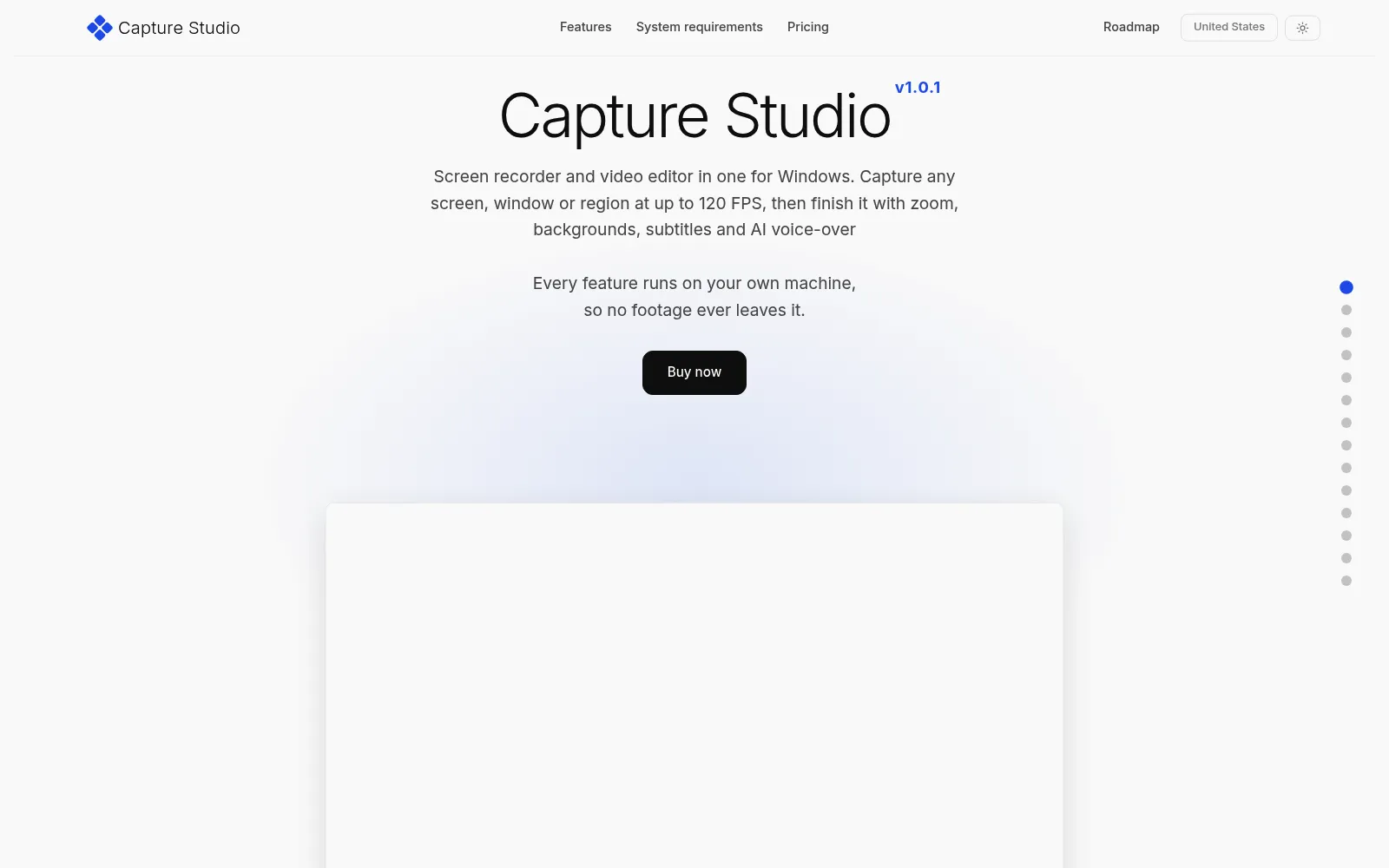
- Captures at up to 120 FPS, which keeps fast cursor movement and animation smooth
- A lifetime licence with one year of updates included, instead of a monthly subscription
- Smart zoom follows the cursor automatically, the same idea that makes Screen Studio popular on macOS
- On device speech to text turns narration into styled captions without uploading audio
- Includes AI narration in 22 languages and an AI presenter with lip sync
Cons
- Windows 10 and 11 only
- No free trial or free tier
- Priced in Norwegian kroner (1,290 kr), so the dollar figure moves with the exchange rate
- Updates are included for one year, after which you keep the version you have
- Younger and smaller than the Mac tools it competes with
Why we picked Capture Studio
Windows users have watched the polished demo tools ship for macOS only for years. Capture Studio is the closest answer: cursor following zoom, a multi track timeline, click highlights, keystroke overlays and privacy blur, in a Windows application you buy once.
The on device AI is the part worth paying attention to. Narration, captions and avatar presenting run locally rather than through a vendor's servers, which matters for anyone recording internal systems under a policy that forbids uploading screen content to third parties.
Two caveats. The licence includes one year of updates, so treat it as buying this version rather than subscribing to the roadmap, and the price is listed in Norwegian kroner, which means your card is charged a converted amount. It is listed in our directory at Capture Studio, with the nearest Capture Studio alternatives alongside it.
Who it is for: Windows users making tutorials, onboarding videos and product walkthroughs who want polish without a recurring bill.
What about QuickTime, the Windows Game Bar and Zoom?
Every operating system ships a recorder, and for a one off capture you should use it. QuickTime records a Mac screen, the Windows Game Bar records an app window with Win+G, and Zoom or Google Meet will record a call you are already in. None of them zoom, caption, trim by transcript or host a shareable link, which is exactly why the eight tools above exist.
If your bottleneck is after the recording rather than during it, two neighbouring tools in our directory are worth knowing: Speechyou for turning recorded audio into a transcript or summary, and TinyFast for compressing a finished video locally before you send it. The wider content creation category lists the rest.
How to choose a screen recorder
- Decide who watches the video. A teammate watching once needs a link and a transcript, which is Loom. A prospect on a landing page needs polish, which is Screen Studio, Tella or Capture Studio.
- Count the minutes before you count the features. Free tiers break on length first. Loom stops at five minutes per video and Descript at sixty transcription minutes a month.
- Check the operating system before anything else. Screen Studio, CleanShot X and Screen Charm are macOS only. Capture Studio is Windows only. Loom, Descript, Tella and OBS cover both.
- Work out the two year cost. CleanShot X Basic is $35 plus an optional $19 a year. Loom Business for a team of five is about $900 a year. Both are reasonable, for different jobs.
- Ask whether you need to own the file. Hosted tools are convenient until you leave. If your recordings are documentation, export them or use a tool that gives you files by default.
For most small teams the honest answer is two tools, not one: something instant for everyday clips, usually Loom's free tier or CleanShot X, and something polished for the handful of videos customers will see.
Once the recording exists, two companion comparisons cover what happens next: AI voice to text tools for transcripts and captions, and social media schedulers for publishing the finished clip on a schedule.
Frequently asked questions
What is the best free screen recorder?
OBS Studio, if you can spend an evening configuring it, because it has no watermark, no time limit and no account. If you want something that works in two minutes, Loom's free plan is better, as long as every video fits inside its 5 minute cap. Descript's free tier is a third option when the recording needs editing, though exports are 720p with a watermark.
Can I record my screen without a watermark for free?
Yes, with OBS Studio, and with the built in recorders in macOS and Windows. Among the paid tools, Loom's free plan does not add a watermark, while Descript and Tella both keep one until you reach a paid tier (Hobbyist and Premium respectively).
Is a one time purchase cheaper than a subscription?
Over two years, usually yes, provided the tool does what you need on day one. CleanShot X at $35 plus optional $19 renewals, or a lifetime Capture Studio licence, costs less than any per seat subscription here. Subscriptions win when you need hosting, viewer analytics, team seats or a steady stream of new AI features.
Which screen recorder is best on Windows?
Capture Studio for polished tutorials with a one time licence, OBS Studio for free long recordings and streams, and Loom or Descript when the work is shared across a team that is not all on Windows. Screen Studio, CleanShot X and Screen Charm are macOS only, so they are out regardless of how often they top these lists.
Do I need a separate tool for captions?
Not usually any more. Loom includes transcription on every plan, Descript is built around the transcript, and Screen Charm and Capture Studio both generate captions locally. OBS is the exception: it records only, so captions come from a second tool such as Speechyou or an editor.